
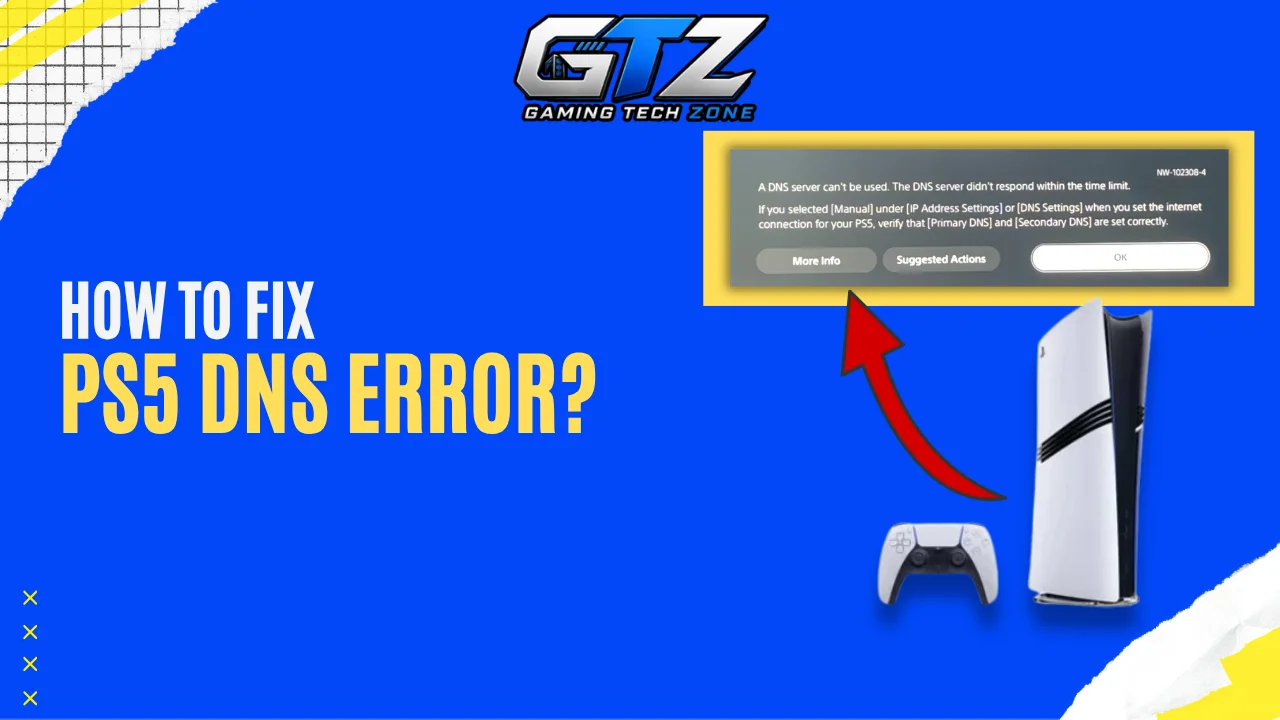
Are you getting a DNS error on your PS5 even though your internet seems to be working normally? I ran into the same issue when my PS5 was connected to Wi-Fi but could not reach PlayStation services.
At first, I thought the problem was with the console, but a few checks pointed to the network instead.
DNS settings, Wi-Fi problems, router issues, and PlayStation Network outages can all cause similar errors. In this guide, I’ll explain what a PS5 DNS error means, how to find the cause, and the fixes worth trying.
Quick Takeaways
- A PS5 DNS error can come from your Wi-Fi, router, ISP, DNS settings, or PlayStation Network.
- Start by testing the PS5 connection and checking another device to identify where the problem is.
- Restarting your PS5, router, and modem can fix temporary connection issues.
- Try Ethernet, reconnect your internet connection, or test another network to narrow down the cause.
- If the error continues, try changing your DNS to Cloudflare or Google and update your router and PS5 software.
What Does a DNS Error on PS5 Mean?
A DNS error means your PS5 is having trouble finding the online server it needs to connect to. DNS, or Domain Name System, helps your console find the right IP address for a website or online service.
When the DNS connection fails, your PS5 may not be able to connect to PlayStation Network or other online services. You may see an error saying that the DNS server cannot be used or that the connection to the server failed.
The problem does not always come from the PS5 itself. It can be caused by your Wi-Fi, router, internet provider, DNS settings, or a problem with PlayStation Network.
Sony also lists NW-102265-6 as a PS5 connection error that can prevent the console from connecting to a server. Restarting the PS5 and router, checking PSN status, trying a wired connection, and changing DNS settings are some of the steps that can help.
What Causes DNS Errors on PS5?
Knowing what can cause the error makes troubleshooting much easier.
Router or Modem Problems
Your router handles the connection between the PS5 and your internet service. A temporary problem with the router can stop DNS requests from reaching the correct server.
Restarting the router is therefore one of the first things worth trying.
Unstable Wi-Fi
A weak or unstable Wi-Fi connection can interrupt communication between the PS5 and router. This is more likely if the console is far from the router or there are walls and other obstacles between them.
DNS Server Problems
Your ISP usually assigns DNS servers automatically. If the assigned server is slow, unavailable, or having temporary problems, switching to a public DNS server can help.
Incorrect Network Settings
A manually entered DNS address, IP address, proxy, or other advanced network setting can cause connection problems if it is incorrect.
PlayStation Network Problems
The problem may also be outside your home network. If PlayStation Network is experiencing an outage or maintenance, changing your DNS will not solve the problem.
How to Check What Is Causing the DNS Error?
Before changing DNS settings, try to identify where the problem is coming from. A few quick checks can tell you if the issue is with your PS5, home network, ISP, or PlayStation Network.
Test the PS5 Internet Connection
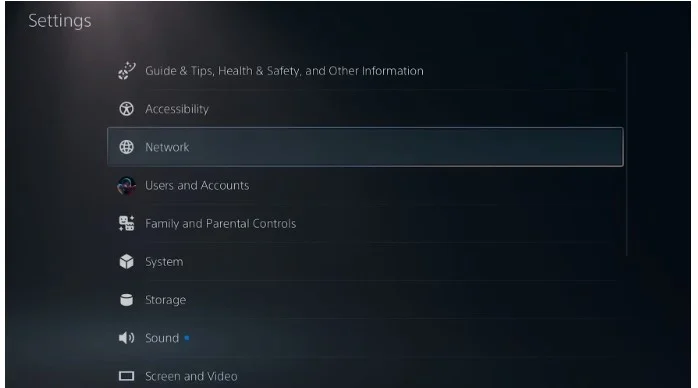
- Open Settings on your PS5.
- Select Network.
- Go to Connection Status.
- Select Test Internet Connection.
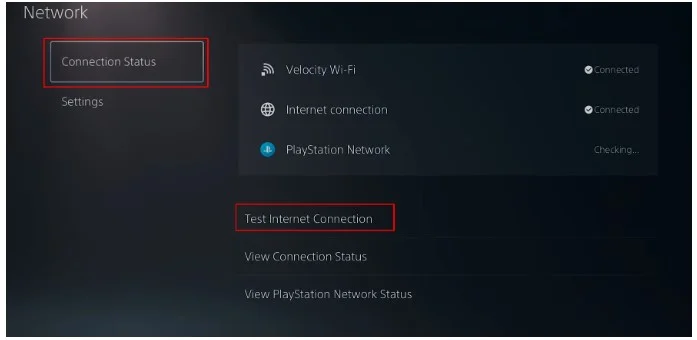
- Let the test finish and review the results.
Look at the results to see where the connection fails:
- Internet connection fails: Focus on your Wi-Fi, router, or ISP first.
- Internet works but PSN fails: The problem may be related to PlayStation Network or the connection between your network and Sony’s servers.
- Everything passes but the error continues: Try the troubleshooting steps below, including changing your DNS settings.
Check Another Device
Connect your phone or computer to the same Wi-Fi network and open a few websites. If those devices also have connection problems, your router, modem, or ISP may be the cause. If they work normally, the problem is more likely limited to your PS5.
I usually check another device before changing any PS5 network settings. It is a quick way to see whether the problem is with the internet connection or the console itself.
Check PlayStation Network Status
It is also worth checking the official PlayStation Network status page. Sony recommends this step because a PSN outage or maintenance can cause connection errors on your PS5.
If PSN is down, changing the DNS settings will not solve the problem. I would wait until the affected service is back online and then test the PS5 connection again.
How to Fix a DNS Error on PS5?
Once you have ruled out a wider outage, work through these fixes in order. Start with the simple options and move toward the network settings only if the problem remains.
1. Restart Your PS5
A restart can clear a temporary network problem.
- Press the PS button on your controller.
- Open the power menu.
- Select Restart PS5.
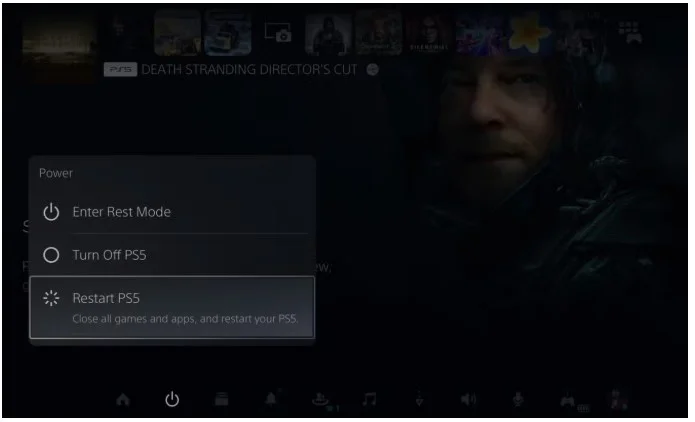
- Wait for the console to restart.
- Go to Settings.
- Open Network.
- Here, select Connection Status.
- Select Test Internet Connection.
If the connection works after the restart, there is no need to change your DNS settings.
2. Restart Your Router and Modem
If restarting the PS5 does not fix the problem, restart your router and modem. Turn both devices off and unplug them from power if needed. Wait at least 5 minutes, then turn the modem back on and wait for it to reconnect to the internet.
After that, turn the router back on and wait for the connection to return.
Finally, test the PS5 connection again. If other devices were also offline, check if they reconnect after the restart. If everything works except the PS5, continue with the next troubleshooting steps.
3. Move the PS5 Closer to Your Router
If you use Wi-Fi, test the console closer to the router.
Walls, furniture, and distance can weaken the wireless connection. Sony recommends moving the PS5 closer to the router and removing anything that may interfere with the connection when troubleshooting wireless problems.
If the connection works when the PS5 is closer to the router, the DNS error may have been a symptom of an unstable Wi-Fi connection rather than a DNS problem itself.
4. Try an Ethernet Connection
Connect the PS5 directly to your router with an Ethernet cable and run the connection test again.
A wired connection removes the wireless link from the equation. If the PS5 works normally over Ethernet but not over Wi-Fi, focus on your wireless connection rather than changing DNS settings repeatedly.
Sony also recommends using a wired connection where possible when troubleshooting PS5 connection errors.
5. Set Up the Internet Connection Again
You can also reconnect your PS5 to your network.
For Wi-Fi:
- Go to Settings.
- Select Network.
- Select Settings.
- Choose Set Up Internet Connection.
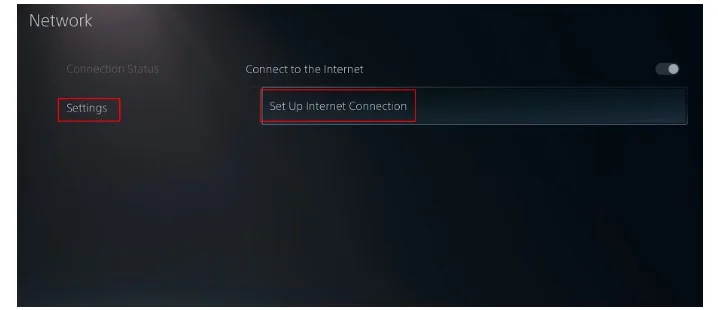
- Select your saved Wi-Fi network.
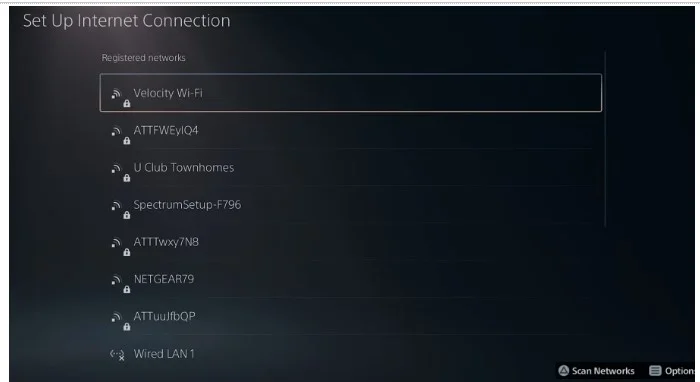
- Connect to the network again.
For a wired connection:
- Go to Settings > Network > Settings.
- Select Set Up Wired LAN.
- Choose Connect.
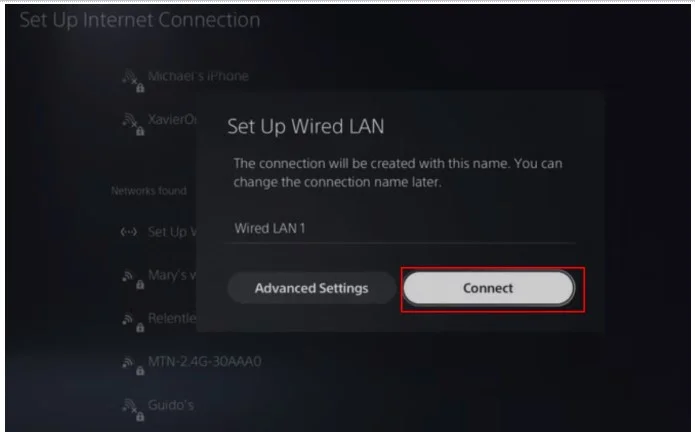
After reconnecting, run Test Internet Connection again. If the PS5 connects normally, the previous saved network configuration may have been causing the problem.
How to Change DNS Settings on PS5?
If the error continues, changing the DNS server is the next step I would try.
PlayStation includes DNS under the PS5’s Advanced Settings and specifically recommends temporarily changing DNS when troubleshooting some connection errors.
Follow these steps:
- Go to Settings.
- Select Network.
- Select Settings.
- Choose Set Up Internet Connection.
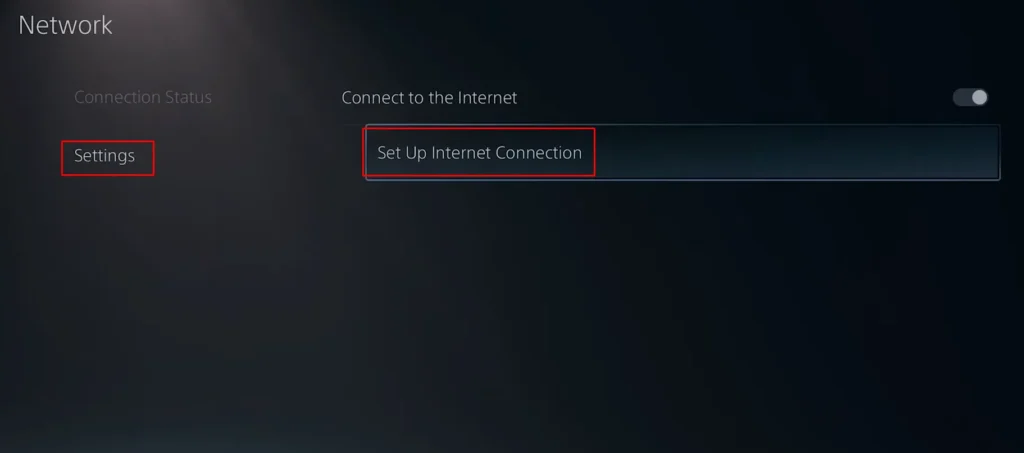
- Select your Wi-Fi or wired connection.
- Press the Options button.
- Select Advanced Settings.
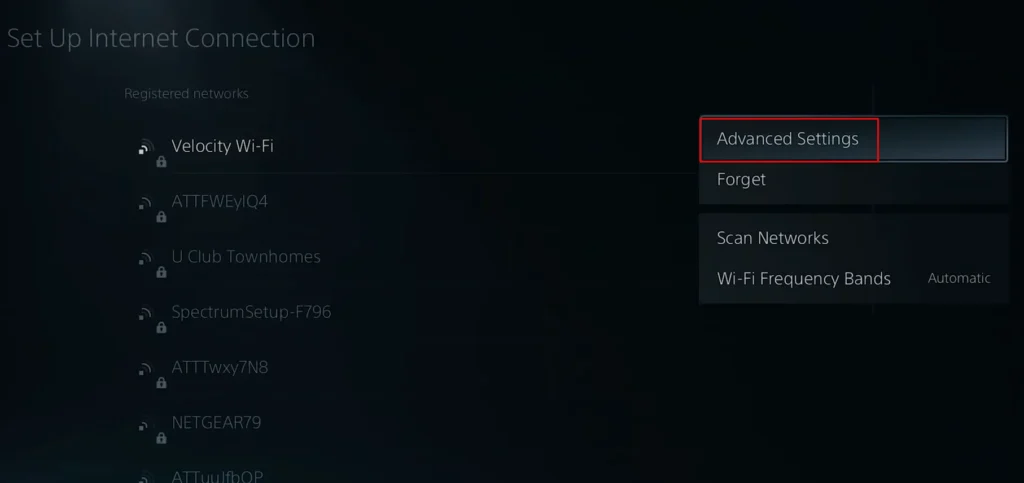
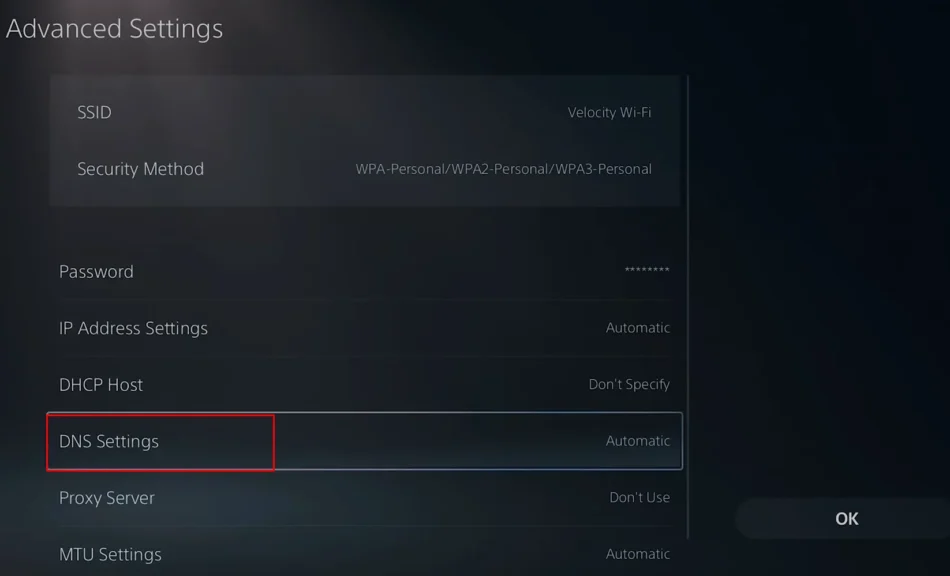
- Find DNS Settings.
- Change DNS from Automatic to Manual.
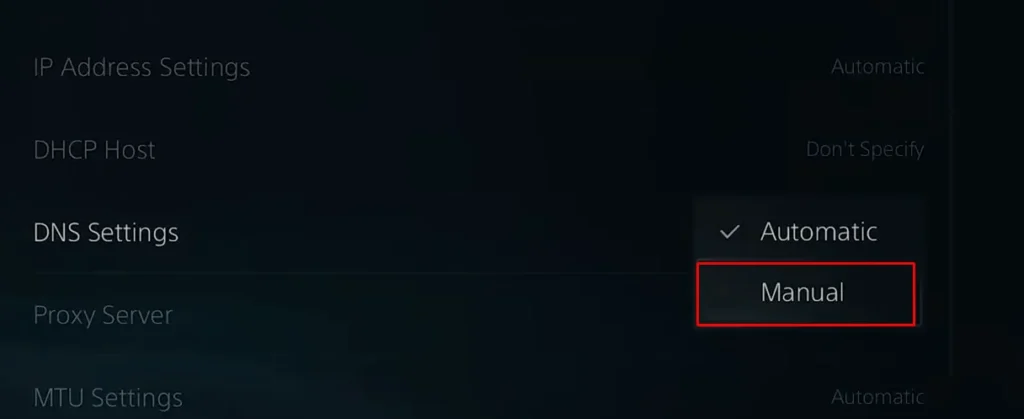
- Enter your preferred primary and secondary DNS addresses.
- Save the settings.
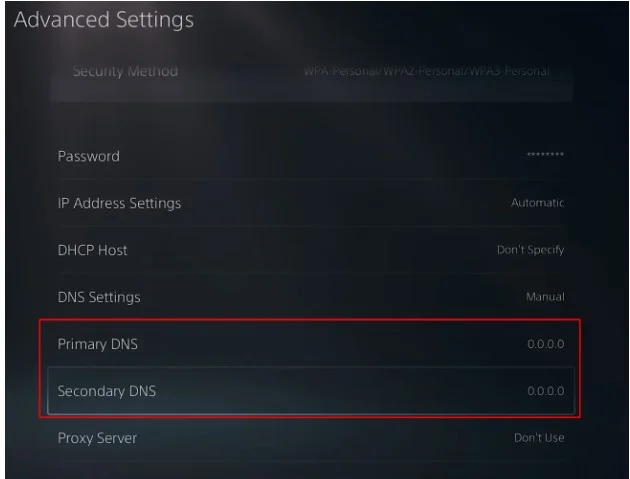
- Run Test Internet Connection.
PlayStation lists DNS, IP address, DHCP host name, MTU, and proxy as advanced network settings on PS5. It also warns that users unfamiliar with these settings should ask their ISP or network administrator for help.
Which DNS Server Should You Use?
You can test a public DNS service instead of the DNS server assigned by your ISP.
| DNS provider | Primary DNS | Secondary DNS |
|---|---|---|
| Cloudflare | 1.1.1.1 | 1.0.0.1 |
| 8.8.8.8 | 8.8.4.4 |
Cloudflare lists 1.1.1.1 and 1.0.0.1 as its standard public DNS addresses. Google lists 8.8.8.8 and 8.8.4.4 for Google Public DNS.
I would try one provider first and then test the connection. If it does not help, you can switch back to Automatic or test the other provider.
Changing DNS is not a guaranteed way to make your PS5 download faster or reduce gaming ping. In this situation, the purpose is to see if a different DNS resolver fixes the connection problem.
Update Your Router Firmware
If the DNS error keeps coming back, check whether your router has a firmware update available. I ran into this step while troubleshooting a similar connection problem, and it is worth checking before changing more network settings.
The update process depends on your router. Some models let you check for updates through a mobile app, while others use the router’s settings page in a web browser.
After updating the firmware, restart the router and connect the PS5 again. Then run Test Internet Connection to see if the error is gone.
Update Your PS5 System Software
An outdated PS5 can also cause connection problems, so check for system updates.
Go to:
- Open Settings.
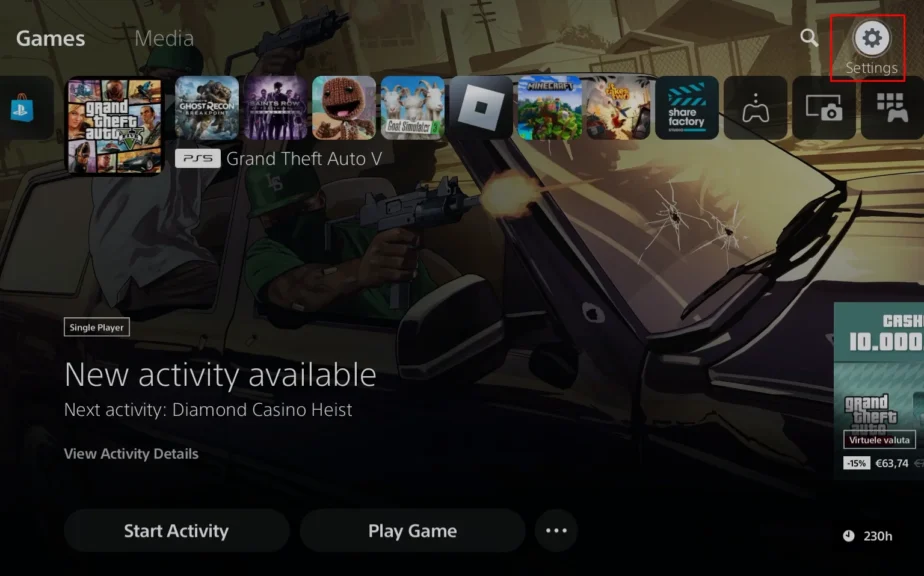
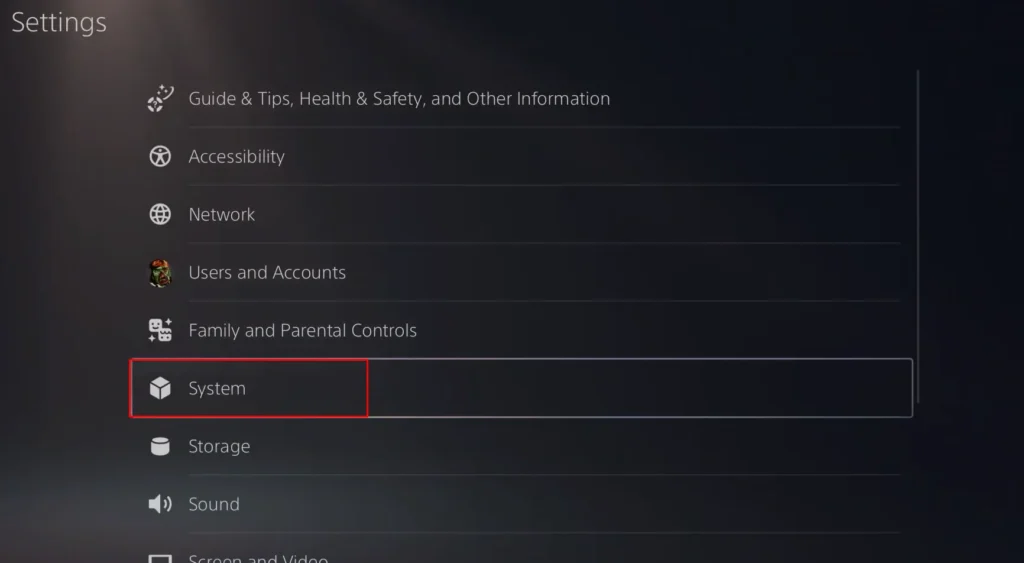
- Select System.
- Choose System Software.
- Select System Software Update and Settings.
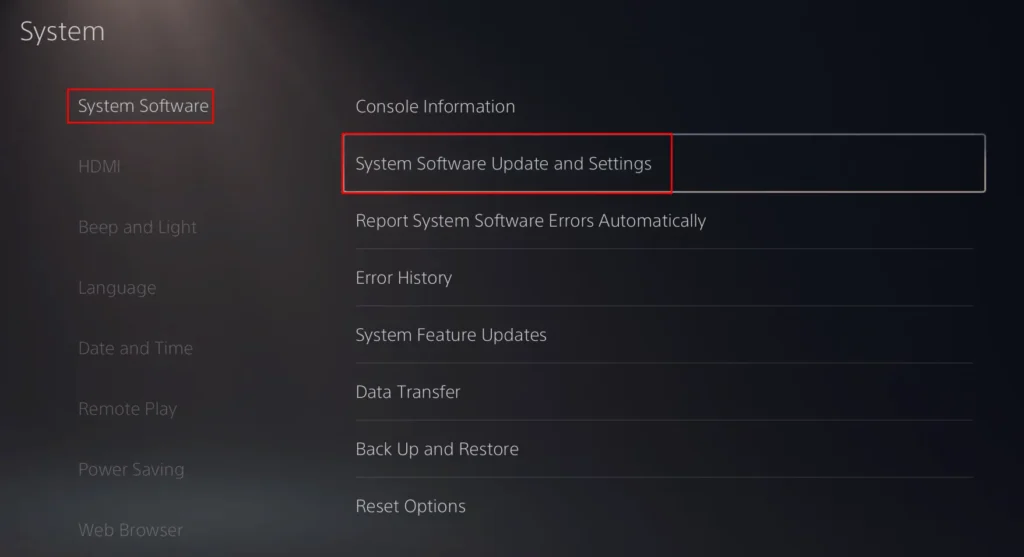
If an update is available, install it and restart the console.
PlayStation provides this menu path for checking PS5 system software updates.
If your PS5 cannot connect to the internet well enough to download the update, use the other troubleshooting steps first or follow Sony’s offline update instructions.
Try a Different Internet Connection
If the DNS error continues, connect your PS5 to another network if possible.
A phone hotspot can work as a temporary test. You do not need to use it permanently.
The result can tell you a lot:
- PS5 works on another network: Your home router, Wi-Fi, DNS, or ISP is more likely to be the problem.
- PS5 still fails: The issue may be with the console’s network configuration or hardware.
- PS5 works on Ethernet but not Wi-Fi: Focus on your wireless connection.
- All devices fail on your home network: Contact your ISP after restarting the router.
This is one of the more useful troubleshooting steps because it separates a PS5 problem from a home-network problem.
What If the DNS Error Still Does Not Go Away?
If the basic fixes and DNS change do not work, avoid changing several advanced settings at random.
Use the results of your tests to narrow down the problem.
| What you found | Most likely area to check |
|---|---|
| Every device has connection problems | Router or ISP |
| Only the PS5 has problems | PS5 network settings |
| PS5 works over Ethernet | Wi-Fi connection |
| PS5 works on another network | Home network or ISP |
| PSN status shows an outage | PlayStation Network |
| Error continues across different networks | PS5 or deeper network issue |
Sony also lists more advanced options for persistent connection problems, including manually configuring a static IP and opening specific ports. These are not the first steps I would recommend because they change your network configuration and may require help from your ISP or router manufacturer.
If you are not familiar with IP, DNS, MTU, or proxy settings, it is better to leave them alone until the simpler troubleshooting steps have been exhausted.
When Do You Need to Contact Your ISP or PlayStation Support?
You may need help from your ISP if the connection problem affects multiple devices, your router keeps disconnecting, or your home network is still not working after a restart.
For a PS5-specific problem, contact PlayStation Support if the console still cannot connect after you have:
- Restarted the PS5 and router
- Checked PSN status
- Set up the internet connection again
- Tested an Ethernet connection
- Tried another network
- Changed the DNS settings
There is one useful clue to check before contacting support. If the PS5 works normally on another network, the problem is more likely related to your home network, router, or ISP. If the same DNS error appears on different networks, PlayStation Support is the better place to start.
Final Thoughts
A DNS error on PS5 does not automatically point to a faulty console. I would first check PSN status, restart the PS5 and router, and test the connection on another device.
If the problem remains, try Ethernet and then change the DNS settings to a public server such as Cloudflare or Google. If the PS5 still cannot connect across different networks, the problem is probably beyond a simple DNS change, and PlayStation Support or your ISP can help narrow it down.
People Also Ask
It means the console is having trouble communicating with the DNS server it is using. The cause can be your router, ISP, Wi-Fi connection, DNS configuration, or a wider PlayStation network problem.
It means the console is having trouble communicating with the DNS server it is using. The cause can be your router, ISP, Wi-Fi connection, DNS configuration, or a wider PlayStation network problem.
Yes, changing your DNS to 8.8.8.8 is generally safe. It is Google’s public DNS server and is free to use.
The PS5 does not have a dedicated option to clear its DNS cache. Restarting the PS5 and router can refresh the network connection and clear temporary DNS-related issues.
Not necessarily. Changing DNS can help if the DNS server provided by your ISP is causing connection problems, but it does not increase your internet plan’s bandwidth.
Ethernet is generally the better troubleshooting choice because it removes Wi-Fi interference from the connection. If your PS5 works over Ethernet but not Wi-Fi, you have a useful clue that the wireless connection needs attention.
Your phone and PS5 can still behave differently on the same network. The PS5 may have a different saved network configuration, a weaker Wi-Fi connection, or another console-specific issue.
