

Running games at 4K on a gaming laptop sounds like a premium experience — and it genuinely can be. However, without the right configuration, most laptops will stutter through frame drops, thermal throttle mid-session, and produce disappointing performance even on a sharp 4K display. Understanding how to optimize a gaming laptop for 4K is the difference between watching a slideshow and enjoying a smooth, visually sharp gaming session.
This guide explains the complete 4K optimization process, including GPU upscaling, graphics control panel settings, Windows performance tweaks, display configuration, VRAM management, and thermal improvements. By the end, readers will understand which settings to adjust, how each change affects performance, and what realistic 4K gaming results look like on modern gaming laptops in 2026.
Quick Answer
To optimize a gaming laptop for 4K, enable GPU upscaling (DLSS, FSR 3, or XeSS), set the Windows power plan to High Performance, configure the NVIDIA or AMD control panel for maximum performance output, and activate the laptop’s OEM performance mode. Native 4K at 60+ fps typically requires a mobile GPU with at least 8GB of dedicated VRAM, a functional MUX switch, and adequate cooling headroom.
Understanding the Hardware Requirements
4K gaming pushes four times more pixels than 1080p, creating a much heavier workload for laptop GPUs. Understanding this helps explain why optimization is necessary for smooth performance.

Mid-range GPUs like the RTX 4070 can handle lighter 4K games, but demanding titles require upscaling for stable frame rates. Optimized 4K with DLSS, FSR, or XeSS delivers the best balance of performance and image quality.
Readers who also want to squeeze out OS-level gains alongside these settings should check the guide on best PC settings for gaming, which covers the full hardware-to-software stack.
Ideal Specs for Smooth 4K Laptop Gaming
A balanced hardware setup is essential for smooth gaming performance, especially in demanding titles. Choosing the right combination of GPU, CPU, memory, storage, and cooling helps maintain stable FPS and prevents performance issues.
- GPU: RTX 3070, RTX 4060, or newer graphics cards for strong gaming performance.
- CPU: Intel Core i7 (12th generation or newer) or Ryzen 7 (5000 series or newer).
- RAM: 16GB is the minimum. 32GB provides better future-proofing.
- Storage: Use an NVMe SSD for faster loading times and system responsiveness.
- Cooling: Dual-fan systems or vapor chamber cooling help maintain temperatures during long sessions.
How to Optimize a Gaming Laptop for 4K: Step-By-Step
Optimizing a gaming laptop for 4K requires adjusting GPU settings, control panel options, and in-game graphics features to balance image quality with smooth performance. These steps help maximize FPS, reduce unnecessary GPU load, and deliver a better 4K gaming experience.
1. GPU Based Features
Enable DLSS, FSR, or XeSS first because upscaling gives the biggest 4K FPS boost with minimal quality loss.
Key Points:
- Enable It: Graphics settings → DLSS/FSR/XeSS → Quality.
- DLSS 3.5: Best for RTX laptops; uses AI for better image quality.
- FSR 3: Works on AMD and NVIDIA GPUs with Frame Generation.
- XeSS: Intel’s upscaling; supports multiple GPU brands.
- Performance Boost: Can nearly double FPS in demanding 4K games.
- Best Mode: Use Quality or Balanced for sharp visuals.
- Avoid Performance Mode: Reduces image clarity.
2. GPU Control Panel Settings for 4K
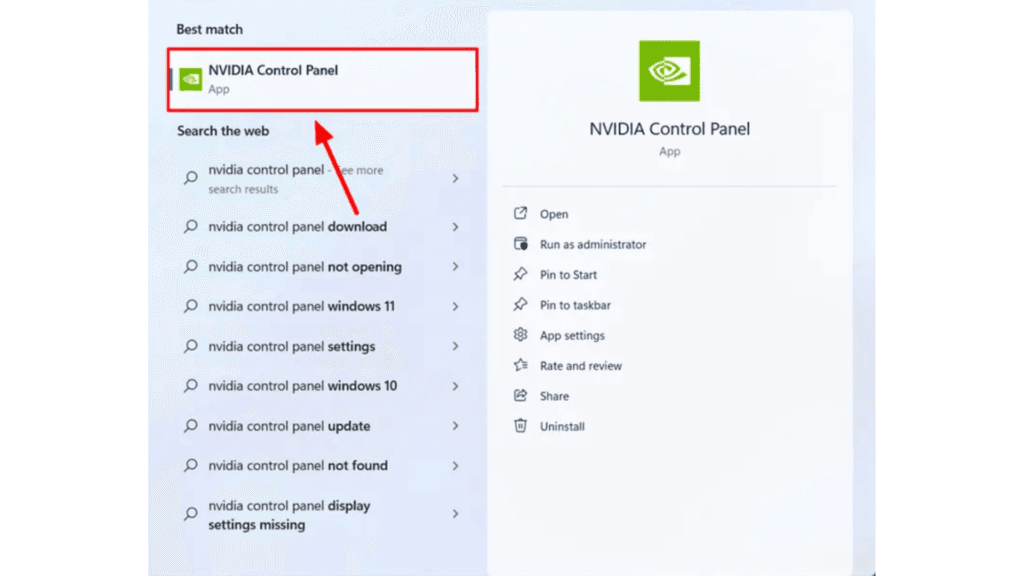
For NVIDIA laptops:
- Open NVIDIA Control Panel → Manage 3D Settings
- Set Power Management Mode → “Prefer Maximum Performance”
- Set Low Latency Mode → “Ultra”
- Set Texture Filtering – Quality → “High Performance”
- Under Preferred Graphics Processor, confirm the discrete GPU is selected—not the integrated GPU
For AMD laptops:
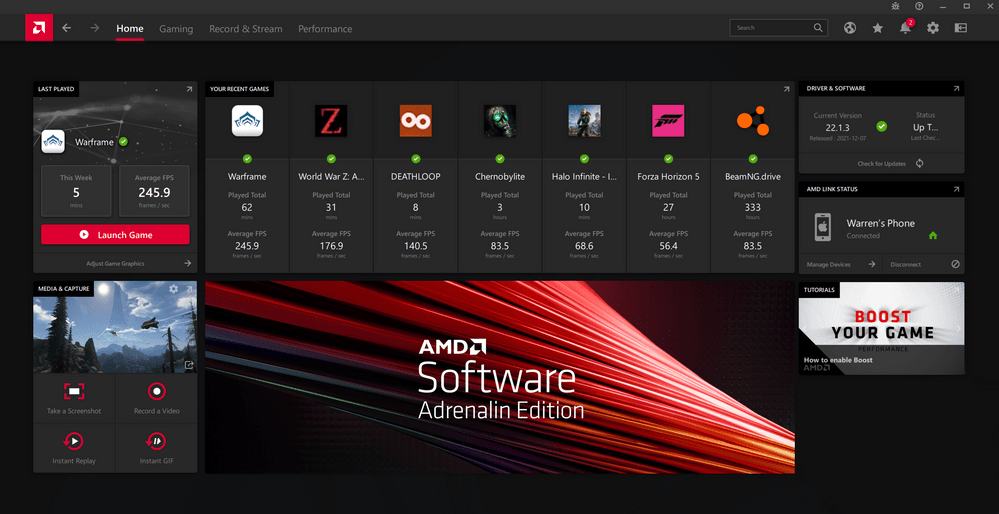
- Open AMD Software: Adrenalin Edition → Gaming → Global Graphics
- Enable Radeon Super Resolution for driver-level FSR upscaling
- Set Texture Filtering Quality → Performance
- Enable Anti-Lag to reduce input latency at high resolutions
Important caveat:
The MUX switch is one of the most important NVIDIA-related optimizations for gaming laptops because it allows the display to connect directly to the dedicated GPU instead of routing through the integrated GPU.
Enabling it through BIOS or OEM software like Armory Crate or Dragon Center can improve 4K gaming performance by around 10–15%, making it a high-value adjustment for maximizing GPU power at higher resolutions.
3. Best In-Game Settings For High FPS 4K Gaming
- Film Grain: Off
- Texture Quality: High
- Shadows: Medium
- Ray Tracing: Turn off / keep it low
- Motion Blur: Turn off
4. Display Settings for 4K Output
Set the correct 4K resolution, maximum refresh rate, and use HDR only when games properly support it.
Key Points:
- Gaming Resolution: Controlled separately inside game settings.
- Set Resolution: Use 3840 × 2160 in Windows display settings.
- Refresh Rate: Select the highest available Hz option.
- Scaling: Keep Windows scaling at 150–200%; it does not affect gaming.
- HDR: Disable it unless the game has proper HDR support.
- 4K 60Hz Panels: Common on laptops due to bandwidth limits.
5. Windows Optimization for Better 4K Gaming Performance
Windows includes several built-in settings that can help your gaming laptop deliver smoother performance by prioritizing system resources and reducing unnecessary background activity. These adjustments work for both light and demanding gaming sessions.
1. Turn On Game Mode
- Open Windows Settings.
- Search for Gaming.
- Select Game Mode.
- Enable the feature to prioritize gaming performance.
2. Reduce Background Processes
- Open Task Manager.
- Go to Startup Apps.
- Disable apps you do not need running in the background.
3. Select a Performance Power Plan
- Open Control Panel.
- Navigate to Power Options.
- Choose High Performance mode for better power delivery during gaming.
For readers exploring GPU-intensive use cases beyond standard gaming, how to optimize a gaming laptop for VR gaming also applies several overlapping techniques around thermal load and driver configuration.
6. VRAM Settings for 4K Resolution
Manage VRAM settings carefully because 4K gaming can quickly exceed 8GB VRAM limits. Lowering textures slightly can prevent stuttering while keeping visuals nearly unchanged.
VRAM Optimization Tips:
- Lower Textures First: Reducing texture quality improves FPS with minimal impact.
- 8GB VRAM: Use optimized textures for demanding 4K games.
- 12GB+ VRAM: Better for max textures and future titles.
- Avoid VRAM Spillover: Prevent stutters caused by using system RAM.
- Monitor VRAM Usage: Check GPU-Z or HWiNFO64 for saturation.
Besides these optimizations, the monitor itself plays the biggest role. Here is our detailed guide on OLED vs IPS monitors.
People Also Ask
An RTX 4070 laptop GPU or AMD RX 7900M is a practical minimum for 4K gaming with upscaling enabled at Quality mode. Flagship GPUs like the RTX 4080 or RTX 5080 handle native 4K in most titles more consistently.
No. When a game renders at 1080p, the display upscales the output passively. The GPU processes frames at 1080p, so performance matches what a 1080p display would produce — there’s no rendering penalty.
Yes. DLSS, FSR 3, and XeSS all function through any display output the laptop supports, including HDMI 2.1 and DisplayPort connections to external 4K monitors.
Use HWiNFO64 or MSI Afterburner to monitor GPU core clock in real time while gaming. If the clock drops significantly below the GPU’s rated boost clock during graphically intensive scenes, thermal throttling is occurring. Enabling a cooling pad or performance mode typically addresses this.
A small number of flagship laptops support 4K 120Hz output via HDMI 2.1, including the ASUS ROG Zephyrus Duo 16 and Lenovo Legion Pro 9i. Achieving stable 120 fps at 4K requires both the HDMI 2.1 port active and a top-tier GPU like the RTX 5080 with DLSS Frame Generation enabled.
Final Words on How To Optimize Gaming Laptop For 4K
Optimizing a gaming laptop for 4K comes down to using upscaling technologies like DLSS, FSR, and XeSS, configuring GPU and Windows settings, managing VRAM, and maintaining proper thermal performance. These adjustments help improve FPS, reduce stuttering, and deliver smoother 4K gaming.
While native 4K is demanding, optimized 4K with quality upscaling usually provides the best balance of image quality and performance on gaming laptops. Following these steps can help modern laptops achieve more stable 4K gameplay without hardware upgrades.
