
Your PC feels sluggish, games stutter, and everything loads a beat too slow—yet you’re not ready to spend on new hardware. Here’s the truth: the right PC tweaks can recover a surprising amount of performance from components you already own.
This article answers one question clearly: which tweaks actually work, and in what order should you apply them?
By the end, you’ll know exactly what to change, what to skip, and why most “optimization guides” waste your time pushing changes that do almost nothing.
What Are PC Tweaks?
PC tweaks are targeted adjustments to your operating system settings, hardware configuration, and background software behavior—designed to extract more usable performance from your existing components.
They’re not magic. But applied correctly, they reduce input lag, improve frame rates, cut boot times, and make everyday tasks feel snappier—without touching your hardware or reinstalling Windows.
The key word is targeted. Random registry edits and obscure scripts rarely help. Every tweak covered here is well-understood, reversible, and consistently effective in 2026.
Quick Answer: PC tweaks are free, software-level changes — like adjusting your power plan, disabling startup programs, and enabling XMP in BIOS — that improve system responsiveness and gaming performance. Most take under five minutes and can be undone instantly.
The PC Tweaks That Move the Needle Most (Built-in Windows settings)
Most guides throw 25 tweaks at you in random order. That’s not helpful. Here’s what genuinely matters, ranked from highest to lowest real-world impact.
1. Switch to a High Performance Power Plan
This is, without question, the highest-impact free computer tweak for performance on most systems.
Windows defaults to a Balanced power plan, which throttles your CPU clock speed to conserve energy — even on desktop PCs plugged into the wall. Switching to High Performance (or Ultimate Performance, available in Windows 11 Pro) keeps your CPU running at full speed constantly.
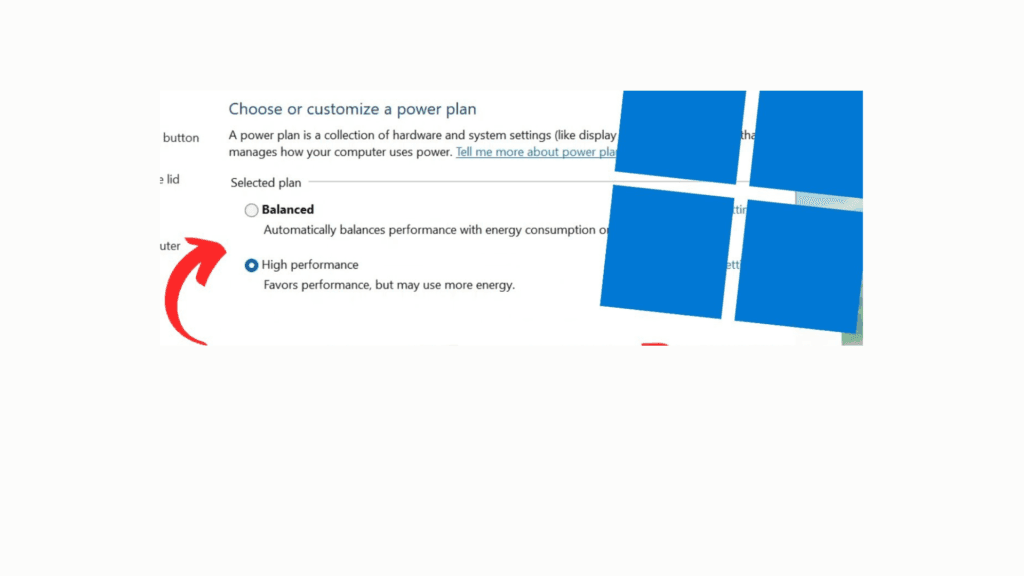
To enable it: Control Panel → Power Options → Show Additional Plans → High Performance. On Windows 11, search “power plan” in the Start Menu.
In practice, this alone improves fps by 5–15% in CPU-bound games on systems where throttling is aggressive — for zero cost.
2. Disable Startup Programs
Every program that auto-launches at startup silently consumes RAM and CPU cycles before you open a single thing. Most PCs accumulate 10–20 of these over time.
Open Task Manager (Ctrl + Shift + Esc) → Startup Apps. Disable anything you don’t need on boot: Discord, Spotify, OneDrive sync, browser helpers. They can all be opened manually when needed.
The result: faster boot times and meaningfully more available RAM from the moment Windows loads.
3. Update Your GPU Driver
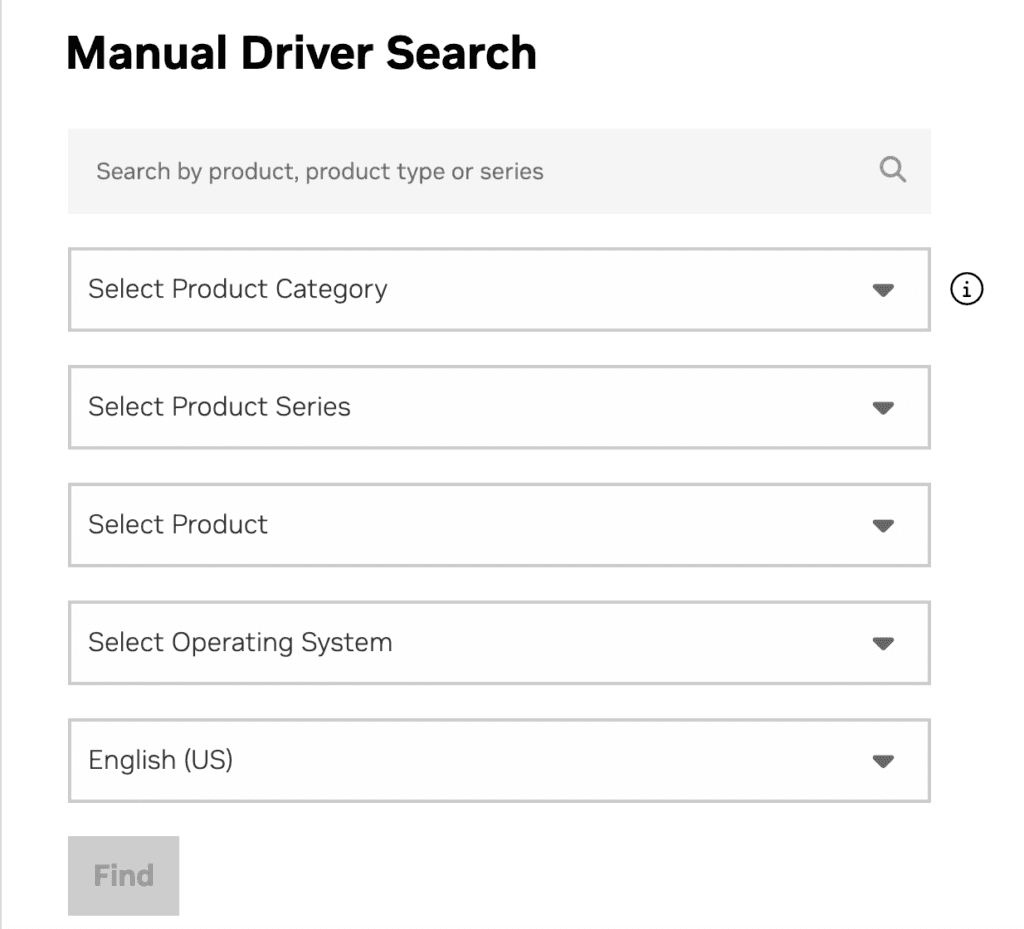
Driver updates are often recommended as a blanket fix — but in practice, it’s the GPU driver that genuinely matters for gaming performance. NVIDIA and AMD both release per-game driver optimizations, and these can measurably improve fps in supported titles.
Download directly from NVIDIA’s website or AMD’s website — skip third-party driver updaters, as they tend to bundle unwanted software.
If you’ve upgraded to a higher refresh rate monitor, pairing your driver update with a guide on how to optimize a gaming PC for 120 Hz is the logical next step—the two work together.
4. Adjust Visual Effects for Performance
Windows continuously renders drop shadows, window animations, and taskbar effects. These look polished but consume real GPU and CPU resources.
To reduce them: Right-click This PC → Properties → Advanced System Settings → Performance Settings → “Adjust for best performance.”
The most impactful settings to disable: minimize/maximize animations, fade effects, and taskbar animations. One setting worth keeping: “smooth edges of screen fonts.” Turning that off makes text noticeably harder to read — not worth it.
5. Enable XMP or EXPO in Your BIOS
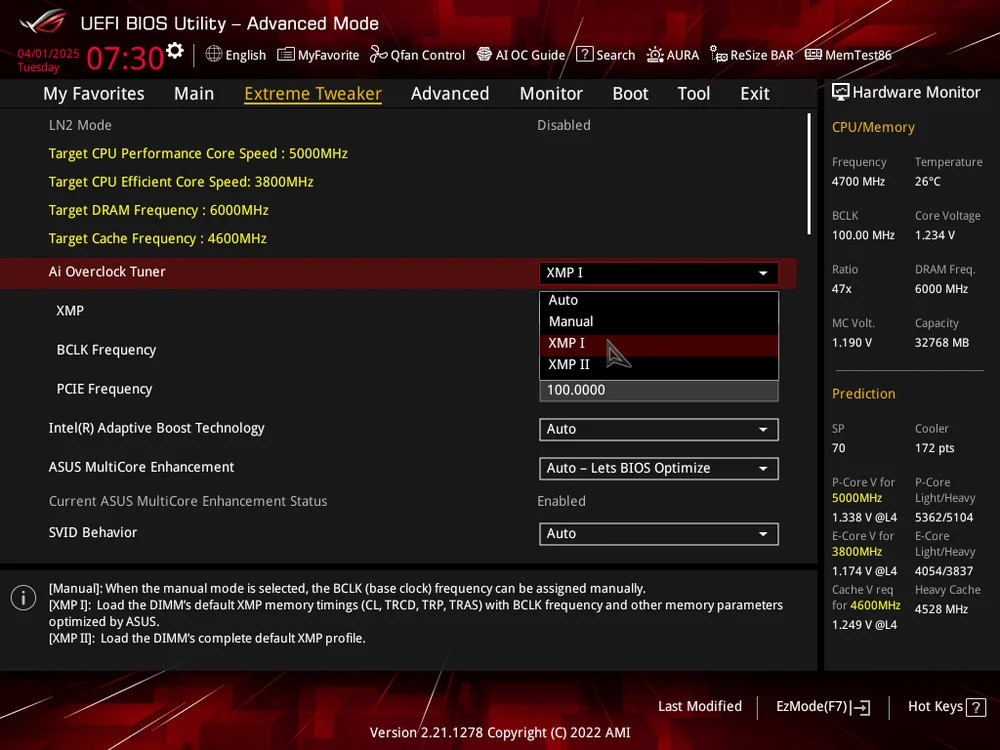
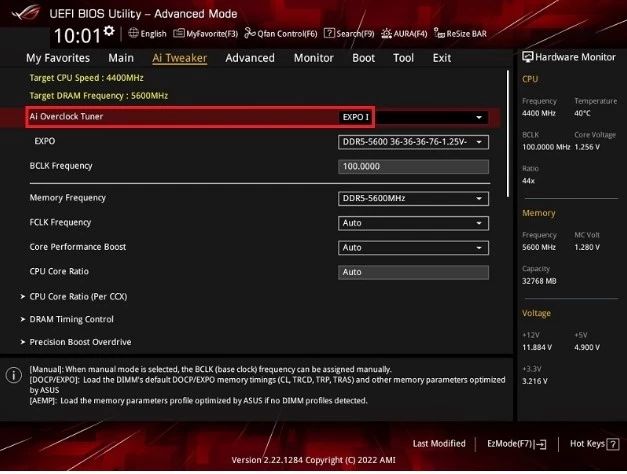
This one surprises people—but it’s one of the most impactful tweaks available for free.
Most DDR4 and DDR5 RAM runs slower than its rated speed until you enable XMP (Intel platforms) or EXPO (AMD platforms) in the BIOS. A stick rated for 3200 MHz might be running at 2133 MHz by default — nearly 30% slower.
Enter your BIOS (usually F2 or Delete at startup) and look for an XMP/EXPO toggle — it’s typically a single click. This improves memory bandwidth and can noticeably reduce stutter in memory-sensitive games.
6. Disable Xbox Game Bar and Background Recording
Xbox Game Bar monitors performance and records gameplay clips in the background, even when you’re not using it—consuming CPU and RAM the whole time.
To disable it: Settings → Gaming → Xbox Game Bar → toggle off. Also check Settings → Gaming → Captures and turn off background recording.
This is especially worth addressing during initial setup. If you’re on Windows 11, a dedicated guide on optimizing Windows 11 for gaming covers this and several other OS-level tweaks in one place.
7. Keep 15–20% of Your SSD Free
If your system drive is a solid-state drive (SSD) — which it should be by now — Windows handles optimization automatically through TRIM. Defragmenting an SSD is unnecessary and counterproductive.
What does matter: SSD performance drops noticeably when the drive exceeds 80% capacity. Keep at least 15–20% free space. Also confirm AHCI mode is enabled in your BIOS (not IDE mode)—IDE mode significantly limits SSD throughput.
Additional PC Tweaks for Gaming Performance
Beyond the core list, a few extra adjustments make a real difference specifically for gaming.
- Game Mode: Settings → Gaming → Game Mode → On. Windows allocates more resources to the active game and suppresses background processes.
- CPU Priority: While a game is running, open Task Manager, right-click the game’s process, and set priority to High—not Realtime, which can destabilize the system.
- V-Sync Off, G-Sync/FreeSync On: Disabling V-Sync in-game and using your monitor’s adaptive sync technology reduces input lag significantly compared to traditional V-Sync.
- Hardware-Accelerated GPU Scheduling (HAGS): On older or mid-range GPUs, this can introduce stuttering. Disable it via Settings → Display → Graphics → Default Graphics Settings.
For a complete system approach covering hardware, display, and software together, the full guide on how to optimize my PC for gaming walks through everything in depth — it’s the best next step after applying the tweaks above.
For laptop users, the calculus is different: thermal throttling and battery profiles add complexity that desktop tweaks alone won’t resolve. Our laptop tuning guide covers those considerations specifically.
Best PC Tweaks
Not every tweak needs a screwdriver. A large chunk of the performance sitting on your PC right now is locked behind software settings alone, some free, some behind a price tag. Knowing which is which saves you from paying for what Windows already gives you for free.
Free PC Tweaks
Almost every tweak that meaningfully improves performance costs nothing. Windows, your GPU vendor, and the games themselves already include the tools, you just have to turn them on.
Free tools worth using:
- Windows Game Mode and Task Manager: built in, no download
- MSI Afterburner: free GPU monitoring and mild overclocking
- RTSS: free frame rate capping, smoother than in game limiters
- DDU: free tool for a clean GPU driver reinstall
- GeForce Experience / AMD Software: auto applies safe per game settings
Paid PC Tweaks
Paid tweaking tools mostly repackage free changes into a one click interface. A few offer genuine automation value, but none of them add performance that isn’t already achievable manually.
What paid tools actually offer:
- Convenience, not new performance: bundles power plan and cleanup steps into one pass
- Time savings: worth it only if you’d rather pay than
- DIY Risk of overreach: some disable services that cause issues later
- No guaranteed fps gains: nothing free tweaks can’t already unlock
Gaming PC Tweaks
Beyond general Windows tweaks, competitive and performance heavy games respond to a specific layer of settings, frame rate behavior, renderer choice, and in game graphics options that generic guides don’t cover.
PC Tweaks For FPS
The single biggest fps gains come from your in game renderer choice and graphics preset, not Windows settings. Get those right first, then layer OS level tweaks on top.
Core fps focused settings:
- Choose the right renderer: DX12 spreads load across cores, best on modern hardware instead of DX11
- Cap frame rate at your monitor’s refresh: uncapped just adds heat and stutter
- Use upscaling in Quality or Balanced: more fps, less visual cost than lowering resolution
- Turn off shadows and heavy post processing first: biggest cost for the least payoff
- Rebuild shader cache after updates: fixes a lot of unexplained stutter
PC Tweaks of Common Games
General tweaks get you most of the way, but a few current games have specific quirks worth knowing before you start changing settings blind.
1. Fortnite PC Tweaks
- Switch to Performance Mode: can roughly double fps on mid range hardware
- Shadows Off: one of the largest individual fps gains
- View Distance, Effects, Post Processing to Low: standard for competitive play
- NVIDIA Reflex On (or On + Boost): lowers input lag
- V Sync off, Fullscreen mode: cuts input delay
2. Crimson Desert PC Tweaks
- Keep Ray Tracing on: this engine is built around it
- Drop Lighting Quality one tier: biggest single fps recovery
- Leave Ray Reconstruction off: forces Lighting to Max, costs fps
- Model Quality to Medium/Low: minimal visual loss
- Run native resolution: heavy upscaling adds visible lighting noise
3. Star Citizen PC Tweaks
- CPU bound, not GPU bound: prioritize a faster single core CPU
- 32GB RAM with XMP/EXPO on: 16GB causes more stutter
- Install on SSD: HDD makes respawns painfully slow
- Process priority to High (not Realtime) during play
- Expect low fps for a few minutes on login: shaders compiling, normal
4. Mafia 3 PC Tweaks
- Drop Shadows and Global Illumination one tier: biggest fps recovery
- DLSS/FSR in Quality mode: near native visuals, real fps gain
- Motion Blur off: clearer visuals, no performance cost
- Expect stutter at cutscene transitions: known engine quirk, not a setting issue
- Keep 8GB+ VRAM: below this causes texture pop in
Common Misconceptions About PC Tweaks
“Registry tweaks will dramatically speed up my PC.” Rarely true in 2026. Most registry changes shared online either do nothing measurable or target older versions of Windows. Unless a specific registry edit is backed by documented benchmarks, skip it.
“More RAM always helps.” Only up to a point. If you’re already on 16GB, adding more RAM typically won’t improve fps in most games. Enabling XMP on your existing RAM returns more value than buying additional sticks.
“Gaming optimization tools do things you can’t do manually.” Most gaming optimization tools automate the same changes described in this article—disabling Game Bar, setting power plans, and closing background apps. They’re convenient shortcuts, not secret weapons. Be wary of any tool promising dramatic gains; many are glorified bloatware.
“Tweaks are risky and hard to undo.” Almost everything here is completely reversible. Power plans, visual effects, startup programs, and even BIOS XMP settings can be reset in minutes. None of this touches system files or requires reinstalling Windows.
Impact vs Effort: Quick Reference
| Tweak | Performance Impact | Time to Apply | Reversible? |
|---|---|---|---|
| Power Plan → High Performance | High | 2 minutes | Yes |
| Disable Startup Programs | Medium–High | 5 minutes | Yes |
| GPU Driver Update | Medium–High | 15 minutes | Yes |
| Enable XMP/EXPO in BIOS | Medium | 5 minutes | Yes |
| Visual Effects → Performance | Medium | 3 minutes | Yes |
| Disable Xbox Game Bar | Low–Medium | 2 minutes | Yes |
| Registry Tweaks | Low (usually) | Variable | Mostly |
Do These PC Tweaks Really Work?
I tested the tweaks covered in this guide to see which ones actually made a difference and which ones were mostly hype. The results weren’t the same on every PC, but some adjustments were clearly more useful than others.
- XMP/EXPO: This is one of the first tweaks I would check. If your RAM is running below its rated speed, enabling the correct profile can improve memory performance and help with stuttering in some games.
- High Performance power plan: I found this more useful when the CPU was being limited by Windows power management, particularly in CPU-bound workloads.
- GPU driver updates: These are worth doing, especially when a new driver includes optimizations for the game you’re playing.
- Startup apps: This didn’t suddenly increase my FPS, but removing unnecessary background programs freed up system resources and made Windows feel more responsive.
- In-game graphics settings: This is where I saw the most practical FPS improvement. Adjusting the renderer, upscaling, shadows, and post-processing can make a much bigger difference than most Windows tweaks.
- Registry tweaks: I wouldn’t bother with these. The common registry “FPS boosts” didn’t give me enough of a measurable improvement to justify the risk or hassle.
My takeaway: Some PC tweaks genuinely work, but I wouldn’t apply every optimization I find online. I would make one change at a time, test the result, and keep only the tweaks that actually improve my PC’s performance.
People Also Ask For
The ones backed by benchmarks genuinely work. Power plan adjustments and XMP enabling produce measurable results. Disabling animations feels faster but the actual time saved per click is under a millisecond — though reduced visual noise still improves perceived responsiveness.
Startup programs should be audited every few months — software installs quietly add to the list. Update GPU drivers when you install a major new game title. Everything else is largely set-and-forget.
No. Software settings and BIOS XMP profiles are standard, user-accessible features that manufacturers fully expect people to use. They don’t void warranties.
For gaming on NVIDIA hardware, GeForce Experience is legitimate and applies driver-level per-game settings. For general cleanup, Windows’ built-in Disk Cleanup and Task Manager are more reliable than most third-party alternatives.
Yes — all of them. Some menu locations differ from Windows 10; notably, power settings have moved to Settings → System → Power.
